Table of Contents
ToggleA smart home gateway is the bridge that makes your connected devices actually talk to each other. Without one, you’re stuck juggling separate apps for lights, thermostats, door locks, and cameras, each living in its own digital silo. A gateway consolidates control, whether you’re managing a handful of devices or outfitting an entire house with automation. This guide walks you through what a gateway does, how to pick the right one, and the steps to get it running without needing a computer science degree.
Key Takeaways
- A smart home gateway acts as a universal translator that connects devices across different protocols (Zigbee, Z-Wave, Thread, Wi-Fi), eliminating the need to juggle separate apps for lights, thermostats, locks, and cameras.
- Local processing is essential when selecting a smart home gateway—look for hubs that run automation routines locally rather than relying on the cloud, ensuring fast response times and continued operation during internet outages.
- Wired Ethernet connections are more stable than Wi-Fi for gateways, especially in homes with heavy network traffic or multiple devices, reducing latency and improving overall system reliability.
- Popular smart home gateway options include Samsung SmartThings Hub ($100–$130), Hubitat Elevation ($140–$160) for advanced users, and Amazon Echo 4th gen ($50–$100) for budget-conscious Alexa users.
- Proper gateway placement within 6 feet of your router and away from interference sources like microwaves and metal cabinets is critical, and running firmware updates before adding devices prevents security vulnerabilities and connectivity issues.
- Start by pairing one simple device like a plug or bulb to test your gateway setup, then gradually build automation scenes and integrate voice assistants to avoid troubleshooting complex issues later.
What Is a Smart Home Gateway and Why Do You Need One?
A smart home gateway (sometimes called a hub) is a piece of hardware that connects and coordinates smart devices across different communication protocols. Think of it as a universal translator: your Zigbee motion sensor, Z-Wave door lock, and Wi-Fi thermostat all speak different languages, and the gateway makes them work together.
Why you need one depends on your setup. If you only have a couple of Wi-Fi-based devices, your smartphone and a cloud service might handle it. But once you add battery-powered sensors, low-power devices, or automation routines that need local processing, a gateway becomes essential. It keeps devices responsive even if your internet goes down, reduces latency, and lets you build complex automation rules that span multiple brands and protocols.
Gateways also improve security. Many models process automation routines locally rather than sending every command to a cloud server. That means fewer points of vulnerability and faster response times, your lights don’t wait for a round trip to AWS to turn on when you walk through the door.
How Smart Home Gateways Work: The Hub That Connects Everything
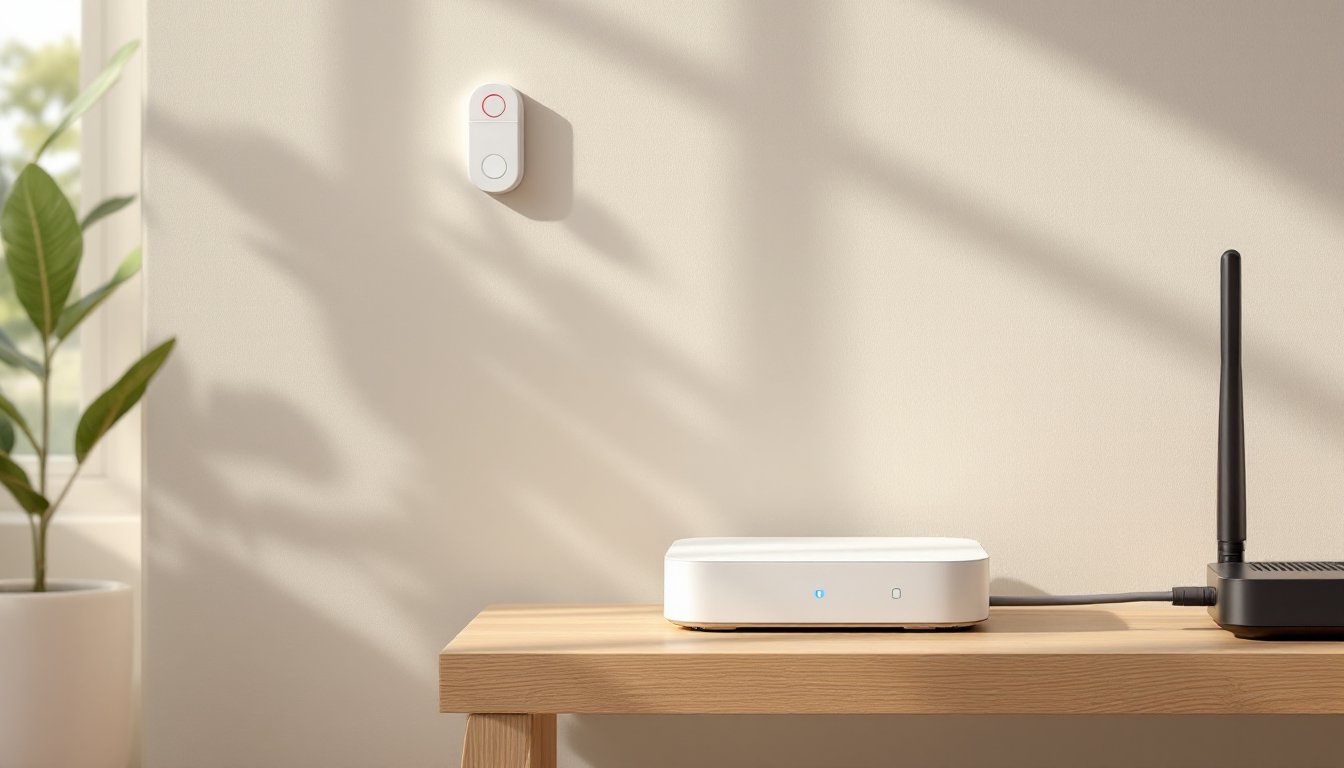
A gateway sits on your home network, typically connected to your router via Ethernet or Wi-Fi. It communicates with smart devices using built-in radios for protocols like Zigbee, Z-Wave, Thread, or Bluetooth. When you issue a command, say, through an app or voice assistant, the gateway translates that instruction into the correct protocol and sends it to the target device.
Most gateways also act as a central point for automation rules. You can create “scenes” or “routines” that trigger multiple devices at once: unlock the door, turn on the hallway lights, and disarm the security system when you arrive home. These routines run on the gateway itself, not in the cloud, which keeps them fast and reliable.
Some gateways integrate with voice assistants like Amazon Alexa, Google Assistant, or Apple HomeKit, letting you control everything with voice commands. Others offer standalone apps with dashboard controls, scheduling, and notifications. Advanced models support Matter, the new interoperability standard that promises seamless device compatibility across brands, though as of 2026, Matter adoption is still rolling out and not every device supports it yet.
Wired gateways (Ethernet-connected) are more stable than Wi-Fi-only models, especially in homes with heavy network traffic or thick walls. If you’re installing one in a basement or central utility closet, Ethernet is the way to go.
Key Features to Look for When Choosing a Smart Home Gateway
Not all gateways are created equal. Here’s what to prioritize:
Local processing: Look for a hub that runs automation locally, not just in the cloud. Local control means faster response times and continued operation if your internet drops. Many cloud-dependent systems grind to a halt when the connection fails.
Expandability: Check the maximum number of devices supported. Entry-level hubs might cap out at 30–50 devices, while robust platforms handle 200+. If you plan to add sensors, switches, and outlets over time, headroom matters.
Power backup: Some gateways include battery backup or support external UPS (uninterruptible power supply) units. This keeps your system running during power outages, critical if you’re using smart locks or security sensors.
App quality and updates: A clunky app or abandoned firmware can ruin an otherwise solid gateway. Read recent reviews on CNET or Digital Trends to see if the manufacturer pushes regular updates and responds to bugs.
Integration options: Does it work with your existing voice assistant? Can it integrate with IFTTT, Home Assistant, or other automation platforms? The more open the platform, the less you’ll be locked into one ecosystem.
Protocol Compatibility and Device Support
Zigbee and Z-Wave are the workhorses of smart home automation. Zigbee devices tend to be cheaper and more widely available, but Z-Wave offers longer range and less interference from Wi-Fi networks. Many gateways support both, which gives you flexibility when shopping for sensors, dimmers, and plugs.
Thread is gaining traction as a low-power mesh protocol backed by the Matter standard. If you’re building a new system from scratch, Thread compatibility is a smart bet for future-proofing, especially for battery-powered devices like contact sensors and motion detectors.
Wi-Fi devices don’t need a gateway to connect, they talk directly to your router, but including them in a central hub simplifies control and automation. Many gateways can “adopt” Wi-Fi devices and integrate them into scenes and routines alongside Zigbee or Z-Wave gear.
Before buying, cross-check the gateway’s compatibility list with the devices you already own or plan to purchase. Not all Zigbee or Z-Wave devices play nice with every hub, especially older or niche brands.
Popular Smart Home Gateway Options for Homeowners
Samsung SmartThings Hub (2026 edition): Supports Zigbee, Z-Wave, and Wi-Fi. Requires an internet connection for most functions, but offers a polished app and broad device compatibility. Good fit if you’re already in the Samsung ecosystem or want a user-friendly starting point. Runs about $100–$130.
Hubitat Elevation: A favorite among DIYers who want local control without cloud dependence. Supports Zigbee, Z-Wave, and integrates with Lutron Caséta (via a separate bridge). The interface is more technical than SmartThings, but you get powerful automation tools and privacy. Runs $140–$160. Works well for those comfortable with some home automation products tinkering.
Amazon Echo (4th gen or later): Doubles as a Zigbee hub and Alexa voice assistant. If you only need Zigbee support and already use Alexa, this is the most cost-effective option at around $50–$100. No Z-Wave radio, though, so you’re limited to Zigbee and Wi-Fi devices.
Aeotec Smart Home Hub: Built on the SmartThings platform but adds Z-Wave 700 series support for better range and battery life. A solid choice if you prefer Z-Wave over Zigbee. Priced similarly to SmartThings at $130–$150.
Apple HomePod mini or Apple TV 4K: Acts as a HomeKit hub for Apple users. Supports Thread and integrates seamlessly with iPhones, iPads, and Macs. If you’re all-in on Apple, this is the easiest path, but you’re locked into the HomeKit ecosystem and device selection is more limited. HomePod mini runs about $100: Apple TV 4K starts at $130.
For those exploring broader smart home automation, pairing a gateway with compatible sensors and switches opens up scheduling, geofencing, and multi-device scenes. Reviews on Tom’s Guide can help narrow down which hub matches your priorities.
Setting Up Your Smart Home Gateway: A Step-by-Step Guide
Tools and materials:
- Smart home gateway (hub)
- Ethernet cable (Cat5e or Cat6, 3–6 ft)
- Smartphone or tablet with the manufacturer’s app installed
- Existing Wi-Fi network and router access
- Power outlet near your router or network switch
Step-by-step:
-
Position the gateway. Place it within 6 feet of your router for wired connection, or in a central location if using Wi-Fi. Avoid metal cabinets, microwaves, and thick concrete walls, they block radio signals. If your home is multi-story, a central ground-floor location usually works best.
-
Connect power and Ethernet. Plug in the gateway and, if supported, connect it to your router using an Ethernet cable. Wired is more reliable than Wi-Fi, especially for gateways managing 20+ devices. Most hubs have a single Ethernet port on the back.
-
Download the app and create an account. Follow the manufacturer’s prompts to register the gateway. You’ll typically scan a QR code on the device or enter a setup code. Enable two-factor authentication if offered, security matters when the hub controls door locks and cameras.
-
Run firmware updates. Before adding devices, check for updates in the app. Manufacturers often patch security holes and add protocol support in firmware releases. This step can take 5–10 minutes but prevents headaches later.
-
Add your first device. Put the gateway into pairing mode (usually a button press or app toggle) and follow the device-specific pairing steps. For Zigbee or Z-Wave sensors, you’ll often need to press a button on the device or remove and reinsert a battery tab. Start with a simple plug or bulb to confirm everything works before tackling sensors or locks. Understanding networked home fundamentals helps troubleshoot pairing issues.
-
Test automation rules. Create a basic scene, like turning on a light when a motion sensor triggers, to verify the gateway processes commands correctly. If it doesn’t work, check signal range: Zigbee and Z-Wave devices form a mesh, so adding a powered plug or switch between the gateway and a distant sensor can extend reach.
-
Integrate voice assistants (optional). If you use Alexa, Google Assistant, or HomeKit, link the gateway through the respective app or settings menu. This lets you control devices by voice and add them to broader routines managed by your voice platform.
Safety and code notes:
Smart home gateways don’t modify electrical wiring or structure, so permits aren’t required. But, if you’re adding hardwired smart switches or receptacles, follow NEC (National Electrical Code) guidelines and consider hiring a licensed electrician for anything beyond basic plug-in devices. Always turn off breakers when working with line-voltage wiring.
If you’re pairing devices installed during a broader smart home devices installation project, double-check that sensors and switches are firmly mounted and batteries are fresh. Weak batteries cause intermittent connectivity and false alerts.
For network-heavy setups, upgrading to a smart home router with quality-of-service (QoS) settings can prioritize gateway traffic and reduce lag. If you experience dropped connections, check for Wi-Fi congestion on the 2.4 GHz band, Zigbee and Wi-Fi overlap, and channel interference is common in dense neighborhoods. Securing your setup is critical: follow best practices to secure your smart home devices and prevent unauthorized access.
Conclusion
A smart home gateway unifies your devices, cuts down on app clutter, and enables automation that actually works, even when the internet doesn’t. Pick a hub that matches your protocol needs, supports local processing, and integrates with the platforms you already use. Then take your time with setup, test each device, and build routines gradually. Done right, a gateway turns a collection of gadgets into a home that responds to how you live.